Cloudron: A Modern Alternative to WHM for Self-Hosted Applications
If you’ve been managing web hosting with WHM/cPanel for years, you might be wondering if there’s a better way. The traditional web hosting panel served us well in the 2000s and early 2010s, but the landscape of web applications has changed dramatically. Enter Cloudron—a modern server management platform that’s purpose-built for today’s application ecosystem.
Why Move Beyond WHM?
WHM (Web Host Manager) paired with cPanel has been the go-to solution for shared hosting providers and system administrators for decades. However, it comes with significant limitations in 2025:
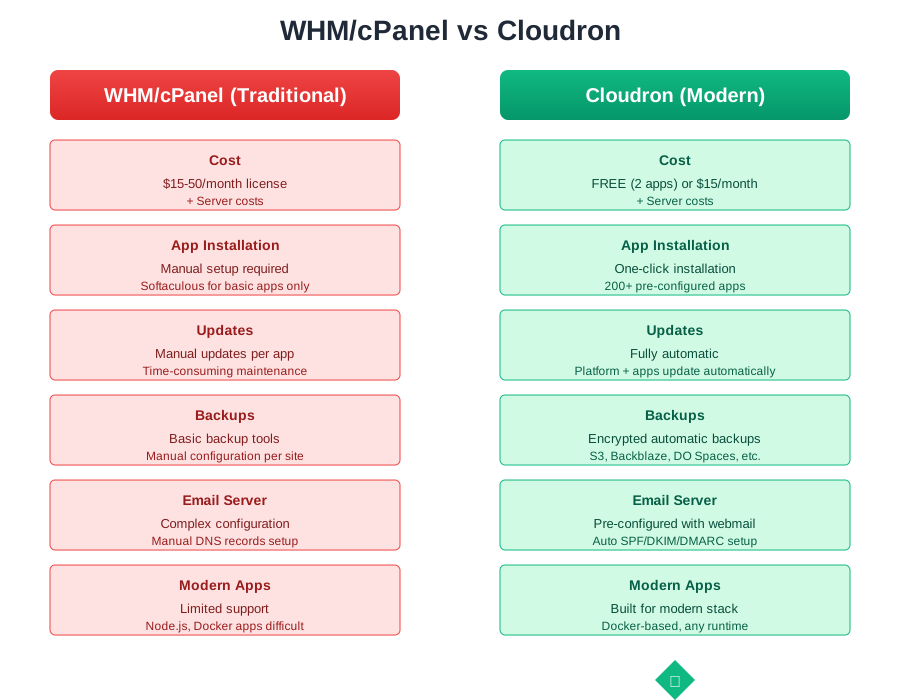
Cost Concerns: cPanel/WHM licensing has become increasingly expensive, with prices rising significantly in recent years. What used to be affordable for small hosting operations now costs hundreds of dollars annually.
Outdated Architecture: WHM was designed for the PHP-and-MySQL era. While it still works for traditional websites, it struggles with modern applications built on Node.js, Python, Ruby, or containerized architectures.
Limited Application Support: Installing modern web apps like Nextcloud, Ghost, or Mattermost on a WHM server often requires manual configuration, dependency management, and ongoing maintenance headaches.
Complexity Overhead: WHM comes packed with features most users never need. The interface is cluttered with options relevant to shared hosting providers but unnecessary for those managing their own applications.
What Makes Cloudron Different?
Cloudron takes a fundamentally different approach to server management. Rather than focusing on shared hosting scenarios, it’s designed specifically for self-hosting modern web applications.
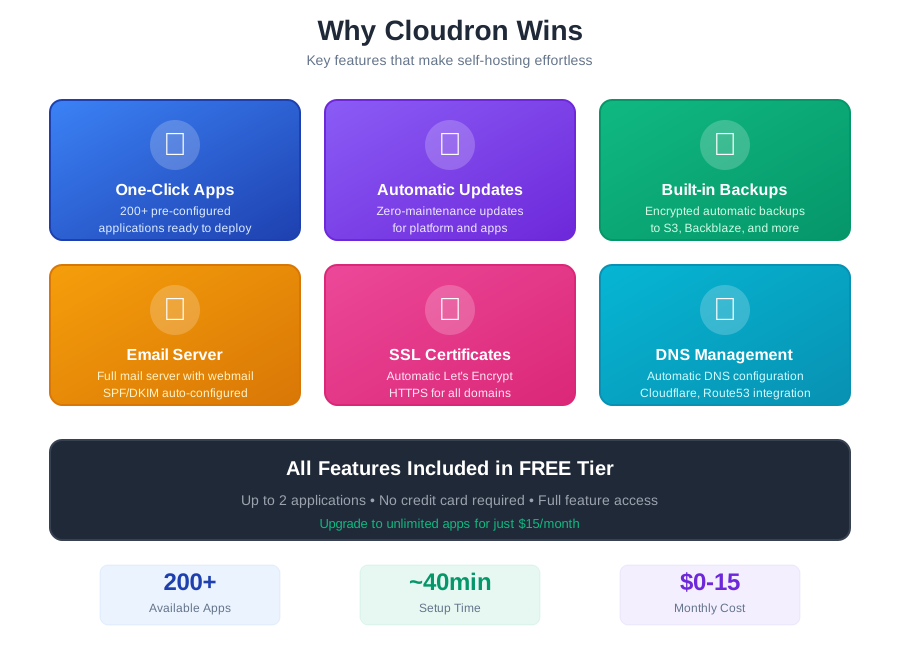
App Store Model: Cloudron provides a curated app store with over 200 pre-configured applications. Installing WordPress, GitLab, Mastodon, or any other supported app is literally a one-click process. Each application runs in an isolated container, ensuring security and preventing conflicts.
Automatic Updates: One of Cloudron’s killer features is automatic updates. Both the Cloudron platform itself and your installed applications can update automatically, keeping your server secure without manual intervention.
Built-in Backup System: Cloudron includes a sophisticated backup system that can store encrypted backups to various destinations including S3, Backblaze B2, DigitalOcean Spaces, or any S3-compatible storage. Backups are scheduled, encrypted, and easy to restore.
Integrated Email Server: Unlike WHM’s complex email configuration, Cloudron sets up a fully-functional email server with proper SPF, DKIM, and DMARC records automatically. You can create email accounts for any domain with a few clicks.
Modern DNS Management: Cloudron can automatically manage your DNS records through integration with providers like Cloudflare, Route53, or DigitalOcean. SSL certificates are obtained and renewed automatically via Let’s Encrypt.
Free Tier Available: Unlike WHM/cPanel which requires paid licensing, Cloudron offers a completely free tier that supports up to 2 applications. This makes it perfect for personal projects, small websites, or testing before committing to a paid plan.
Setting Up Cloudron on a Cloud Server
Let’s walk through setting up Cloudron on a cloud-hosted server. I’ll use DigitalOcean as the example, but the process is nearly identical for Linode, Vultr, or any other VPS provider.
Prerequisites
Before you begin, you’ll need:
- A domain name with access to DNS management
- A cloud hosting account (DigitalOcean, Linode, etc.)
- Basic command-line familiarity
- At least a $12/month server (2GB RAM minimum, 4GB recommended)
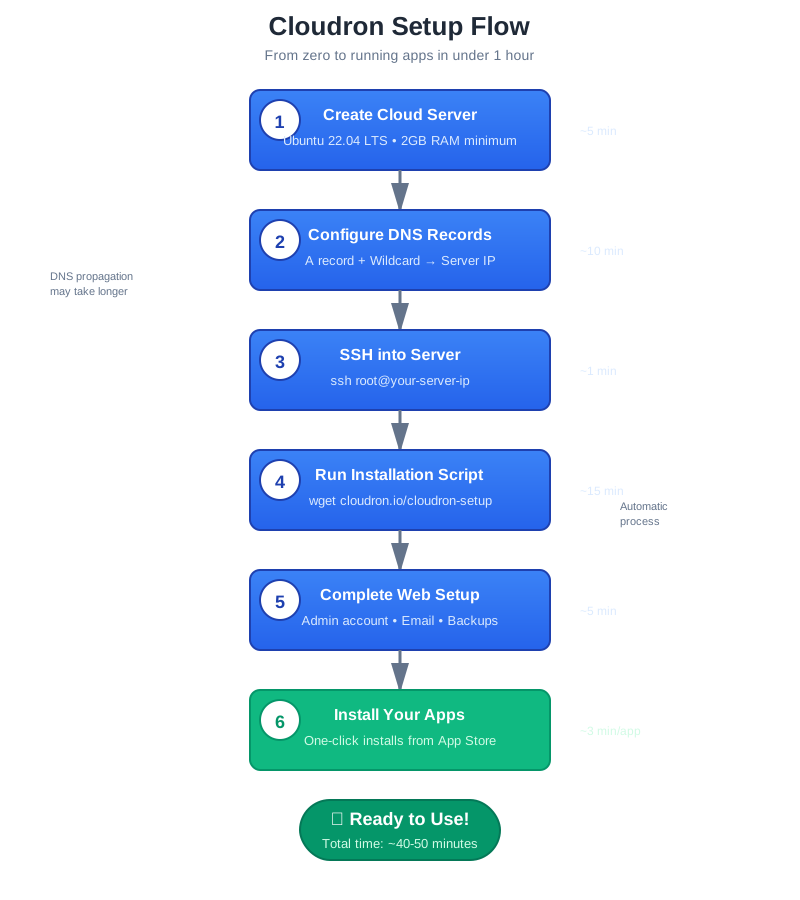
Step 1: Create Your Server
On DigitalOcean:
- Log into your DigitalOcean account
- Click “Create” and select “Droplets”
- Choose Ubuntu 22.04 LTS as your distribution
- Select a plan with at least 2GB RAM (the $12/month Basic Droplet works well)
- Choose a datacenter region close to your target audience
- Add your SSH key for secure access
- Give your droplet a memorable hostname
- Click “Create Droplet”
On Linode:
- Log into your Linode account
- Click “Create Linode”
- Select Ubuntu 22.04 LTS
- Choose a plan with 2GB RAM or more (Linode 2GB is perfect)
- Select your preferred region
- Add your SSH key
- Name your instance
- Click “Create Linode”
Wait a few minutes for your server to provision. You’ll receive an IP address—note this down.
Step 2: Configure DNS
Before installing Cloudron, set up your DNS records. Cloudron needs a dedicated subdomain (commonly my.yourdomain.com) for its admin panel.
In your DNS provider, create an A record:
1
my.yourdomain.com → [Your Server IP Address]
Also create a wildcard record if you plan to host multiple apps:
1
*.yourdomain.com → [Your Server IP Address]
This allows you to access apps at addresses like blog.yourdomain.com or mail.yourdomain.com.
Wait 10-15 minutes for DNS propagation before proceeding.
Step 3: Install Cloudron
SSH into your server:
1
ssh root@[Your Server IP Address]
Once connected, run the Cloudron installation script:
1
2
3
wget https://cloudron.io/cloudron-setup
chmod +x cloudron-setup
./cloudron-setup
The installer will:
- Check system requirements
- Install necessary dependencies
- Set up Docker containers
- Configure networking
- Install the Cloudron platform
This process takes 10-15 minutes. The installer will ask a few questions:
- Domain: Enter your Cloudron admin domain (e.g.,
my.yourdomain.com) - DNS Provider: Choose your DNS provider from the list or select “Wildcard” if you manually configured DNS
- Backup: You can configure this later, so it’s safe to skip during initial setup
Step 4: Complete Setup via Web Interface
Once installation completes, navigate to https://my.yourdomain.com in your browser (using whatever subdomain you chose).
You’ll be guided through the setup wizard:
- Create Admin Account: Set up your administrator email and password
- Choose License: Select the “Free” option which supports up to 2 apps
- Configure Email: Choose whether to enable the email server (recommended)
- Set Up Backups: Configure your backup destination (S3, Backblaze, etc.)
- DNS Automation: If you want Cloudron to manage DNS automatically, provide API credentials for your DNS provider
Step 5: Install Your First App
Now for the fun part—installing applications:
- From the Cloudron dashboard, click “App Store”
- Browse or search for an application (try WordPress or Nextcloud to start)
- Click the app you want to install
- Configure the installation:
- Choose a subdomain (e.g.,
blog.yourdomain.com) - Set any app-specific options
- Choose a subdomain (e.g.,
- Click “Install”
Cloudron will automatically:
- Create the subdomain
- Install and configure the application
- Set up SSL certificates
- Configure backups
- Start the application
Within 2-3 minutes, your application is live and accessible via HTTPS.
Advanced Configuration
Configuring Automatic Backups
Navigate to “Backups” in the Cloudron admin panel. Cloudron supports multiple backup destinations:
For S3-Compatible Storage:
- Choose your provider (AWS S3, Backblaze B2, DigitalOcean Spaces, etc.)
- Enter your access credentials
- Specify the bucket name
- Set your backup schedule (daily is recommended)
- Configure retention policy (how many backups to keep)
Backups are encrypted before upload, and Cloudron handles the encryption keys securely.
Setting Up Email
If you enabled email during setup, Cloudron has already configured a full mail server with:
- SMTP for sending
- IMAP/POP3 for receiving
- Webmail interface
- Spam filtering
- Antivirus scanning
To create email accounts:
- Go to “Email” in the admin panel
- Click “Mailboxes”
- Create new mailboxes for your users
- Users can access email via the webmail interface at
mail.yourdomain.comor configure desktop/mobile clients
Monitoring and Maintenance
Cloudron includes built-in monitoring:
- CPU, memory, and disk usage graphs
- Application health status
- System logs and application logs
- Automatic security updates
You can configure email notifications for important events like failed backups, high resource usage, or application crashes.
Cost Comparison
Let’s compare the real costs:
WHM/cPanel Route:
- cPanel license: $15-50/month
- Server: $10-20/month
- Total: $25-70/month
Cloudron Route (Free Tier):
- Cloudron license: $0/month (up to 2 apps)
- Server: $12-24/month
- Total: $12-24/month
Cloudron Route (Paid Tier):
- Cloudron license: $15/month for unlimited apps
- Server: $12-24/month
- Total: $27-39/month
For personal projects or small deployments with 2 apps or fewer, Cloudron is significantly cheaper than WHM/cPanel. Even the paid tier offers comparable pricing with superior features like automatic backups, email server with webmail, automatic SSL, and a curated app store.
Understanding the Free Tier Limitations
The free tier is genuinely free—no credit card required, no trial period, no hidden costs. However, it has one key limitation:
2 App Maximum: You can install and run up to 2 applications simultaneously. This is perfect for:
- A personal blog and email server
- A website and a Nextcloud instance
- WordPress and a development tool like GitLab
- Any combination of 2 apps from the 200+ available
The free tier includes all core features:
- Automatic updates
- SSL certificates
- Email server functionality
- Backup configuration
- DNS management
- Full admin panel access
If you later need more than 2 apps, upgrading is seamless and doesn’t require reinstalling anything.
Who Should Use Cloudron?
Cloudron is ideal for:
- Personal projects needing professional hosting without monthly subscription fees (free tier)
- Small businesses wanting to self-host their applications without hiring a sysadmin
- Developers who need quick deployment for multiple projects
- Privacy-conscious users who want control over their data
- Organizations moving away from expensive SaaS subscriptions
- Anyone tired of manual server maintenance
Cloudron might not be the best choice if you:
- Need to run custom applications that aren’t in the app store
- Require shared hosting for multiple clients
- Need extremely fine-grained control over every server aspect
- Want to run more than 2 apps but can’t afford the paid plan
Conclusion
Moving from WHM to Cloudron represents a shift from the old paradigm of shared hosting management to modern application self-hosting. While WHM excels at managing traditional hosting scenarios with multiple clients, Cloudron streamlines the experience of running modern web applications for yourself or your organization.
The combination of automatic updates, built-in backups, one-click app installation, and integrated email makes Cloudron a compelling alternative that saves time and reduces complexity. The initial setup takes under an hour, and ongoing maintenance is largely automatic.
Best of all, the free tier means you can start with zero software licensing costs. For many personal projects and small deployments, the 2-app limit is perfectly sufficient. If you’re managing your own server infrastructure and tired of the complexity and costs of traditional hosting panels, Cloudron deserves serious consideration.
Ready to get started? Head over to cloudron.io and launch your server in the next hour. With the free tier, you have nothing to lose and a modern, streamlined hosting experience to gain.